Create your Proma account, choose how you'll sign in, and set up your profile. If your company already uses Proma, ask your admin for an invite before you begin.
Create your account
Go to the sign-in page. Visit app.proma.ai. You'll land on the sign-in screen.
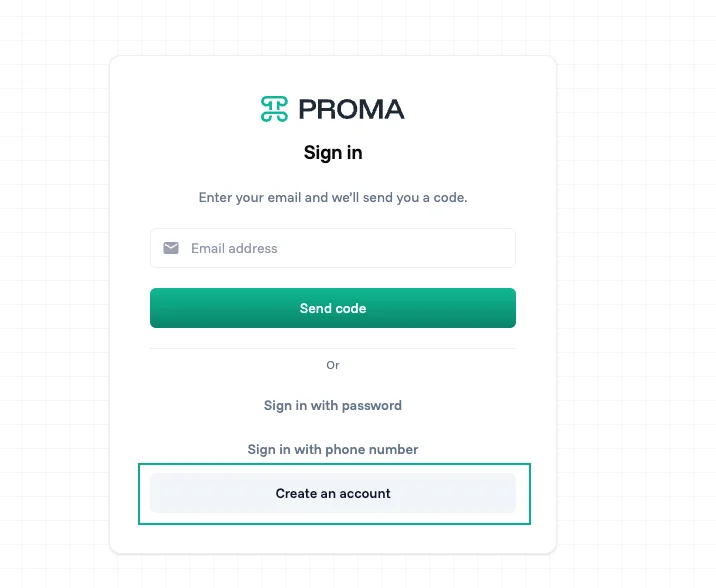
Click Create an account. It's at the bottom of the sign-in screen.
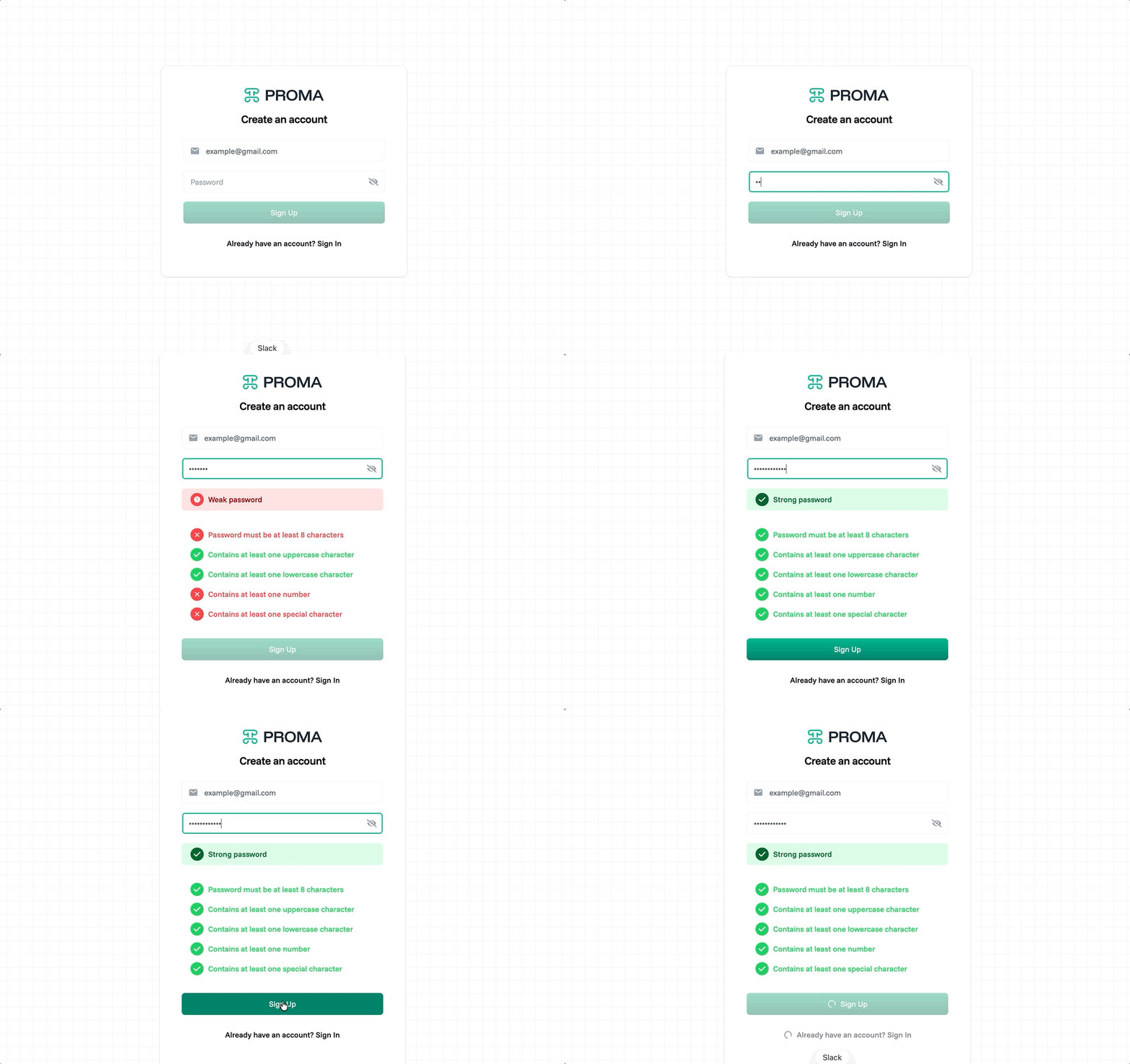
Enter your email and create a password. As you type, Proma checks your password in real time and shows whether it's Weak, Medium, or Strong. Your password must meet all five requirements before you can sign up:
At least 8 characters
At least one uppercase character
At least one lowercase character
At least one number
At least one special character
The Sign Up button becomes active only once all five requirements are met.
Verify your email. Check your inbox for a verification email from Proma and click the confirmation link. If it doesn't arrive within a few minutes, check your spam folder.
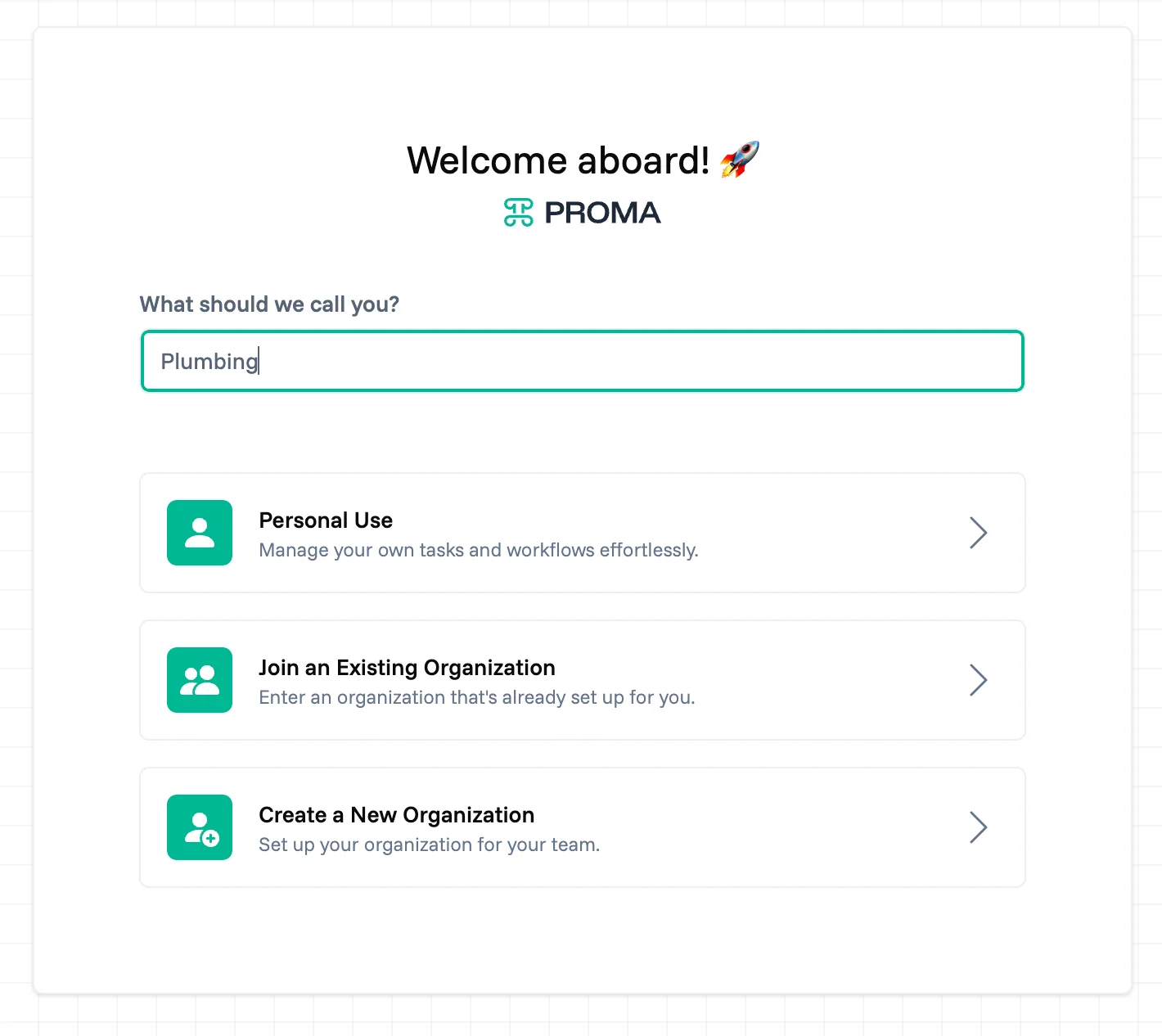
Set your name and choose how you'll use Proma. After verifying, you'll see a "Welcome aboard!" screen. Enter your display name, then choose one of three options:
Personal Use: For managing your own work. You get the full Proma experience and can invite members later if you want to.
Join an Existing Organization: If your company added you, you'll see the pending invitation here. Accept it to join your team. If you see "No pending invitations," ask your admin to invite you.
Create a New Organization: If you're setting Proma up for your team for the first time. This creates your organization and makes you the admin.
If your company is already using Proma, sign up with the same email address your admin invited, then choose Join an Existing Organization. Creating a new organization by accident sets up a separate account disconnected from your team. Already have a Proma account? Invitations also appear under Manage invitations in your profile settings.
You're in. Once you've chosen your path, you'll land on your Proma Home screen. From here you can build your first system with + Create System. Learn more in Intro to System .
Invite your team
If you created a new organization, you can invite members from Organization Settings under Invited Users. Enter their email address to send an invite, which notifies them by email, or create an invitation link to share. Learn more in Create an Organization.
Sign-in methods
Proma supports three ways to sign in. You can switch between them at any time from the sign-in screen.
Email and password: The standard method. Enter your email and password to sign in.
OTP: Enter your email address and Proma sends a one-time code to your inbox. No password needed. Codes expire after a few minutes, so request a new one if yours stops working. Useful for shared devices or if you prefer not to manage a password.
Phone number: Enter your phone number and Proma sends a verification code by SMS. Useful in regions where phone-based authentication is preferred.
What you see when you first sign in
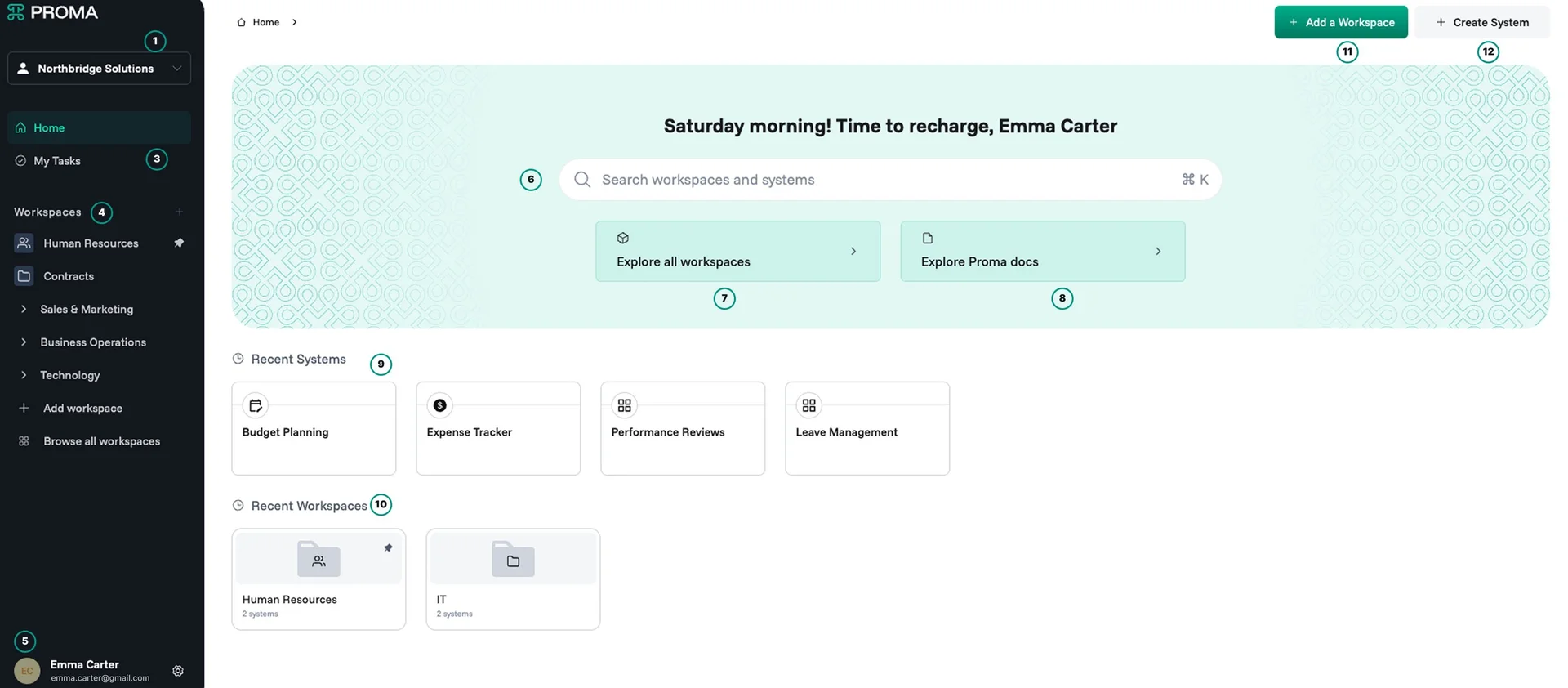
When you sign in, you land on your Home screen. Here's what you're looking at:
Organization switcher: Shows your current organization. Click it to switch organizations or open organization settings.
Home: Takes you back to your homepage.
My Tasks: Your to-do list.
Workspaces: The left sidebar lists your workspaces. Items with a chevron are collections, so click to expand them.
Your account: Your profile settings at the bottom of the sidebar.
Search: Press Cmd + K (Ctrl + K on Windows) to search across all your workspaces and systems.
Explore all workspaces: Opens the Workspaces page, where you can browse everything in your organization.
Explore Proma docs: Opens the Proma user guide.
Recent systems: The systems you've opened most recently, so you can jump back in quickly.
Recent workspaces: The workspaces you've opened most recently.
+ Add a Workspace: Creates a new workspace.
+ Create System: Starts building a new system.
Set up your profile
Click your avatar or name in the bottom-left corner of the screen to open your profile panel. You'll see five options in the left sidebar:
Profile: Update your basic account settings.
Display name: How your name appears to other team members across all systems.
Email address: Your account email. Shown here for reference.
Appearance theme: Choose Light, Dark, or System (follows your device setting).
Click Update Profile to save any changes.
My Organizations: See all organizations you belong to and your role in each. If you've been invited to multiple organizations, you can switch between them here.
Change password: Update your current password. You'll need to enter your existing password before setting a new one.
Manage invitations: View any pending invitations to join other organizations. Accept or decline from here.
Logout: Signs you out.
Having trouble signing in?
Verification email didn't arrive: Check your spam or junk folder first. If it's not there, go back to the sign-up page and request a new verification email. Make sure you entered your email address correctly.
SMS code not arriving: Check that your phone number is entered in the correct international format (e.g. +1 for the US). If you're still not receiving codes, use email/password or OTP sign-in as an alternative.
Forgot your password: Click Forgot password? on the sign-in screen and enter your email address. You'll receive a reset link in your inbox.
Next steps
Now that your account is ready, these articles will help you get started:
Workspaces and collections : Organize your projects, departments, and teams.
Intro to System : Learn the building blocks you'll create with.
Have questions? Our team is ready to help at support@proma.ai.