In a regular spreadsheet, every cell is the same: a blank box waiting for someone to type something in. Smart Columns are different. Each column type understands the kind of data it holds and does something useful with it: validating entries, enforcing rules, connecting to other records, triggering workflows, or running entire business processes. Choose the right column type for the job and it handles the rest.
Smart Columns live inside a dataset. If you haven't created one yet, start with Dataset, then come back here to make your columns work for you.
Smart Columns are organized into three categories based on what they do. Standard columns store and organize your core data. Interactive columns let users take action directly from a row. App columns embed complete business processes like payments or approvals into a single cell.
To add a Smart Column, click + Add Column in the column header row and pick a column type. For the full walkthrough, see Working with rows and columns.
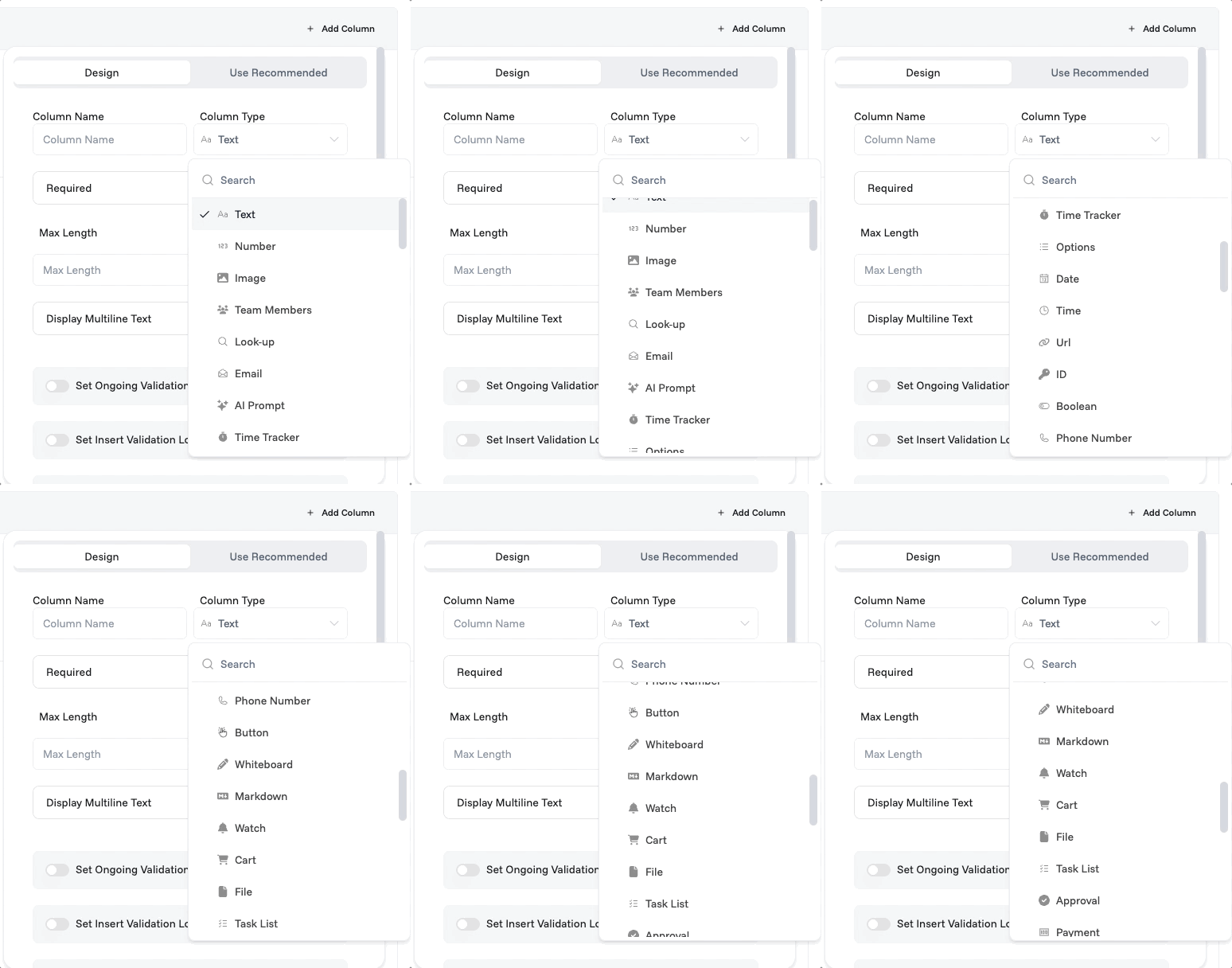
Types of Smart Columns
Standard Columns
The foundation of any dataset. Use these to capture, organize, and relate the everyday data your business runs on: names, numbers, dates, files, and people. Get these right and everything else builds on top of them.
Standard Columns
The foundation of any dataset. Use these to capture, organize, and relate the everyday data your business runs on: names, numbers, dates, files, and people. Get these right and everything else builds on top of them.
Column | What it does |
Text | Free-form text for names and labels. Set a character limit to keep entries consistent, and enable multiline display for longer content. |
Number | Stores numeric values: prices, quantities, scores, measurements. Set a minimum and maximum to prevent out-of-range entries. |
Image | Upload one or more images. Set a size limit, restrict formats, and optionally show a thumbnail preview directly in the grid. |
Team members | Assign people from your organization to a row. Filter by all org members or a custom list. Allow multiple assignees and choose how they appear: show a name, email, department, or combine fields. Display assignees as chips for a cleaner look. |
Look-up | Reference records from another dataset in your current one. For example, bring in a Customer Name from your Customers dataset into your Orders dataset, keeping your data connected without duplication. Allow multiple references per row, add new records within the lookup, choose which columns to display, and control how the referenced values appear. |
Stores an email address with built-in format validation. Optionally display an email icon next to the value. | |
Options | A list of choices like a status, category, or tag. Select one or multiple values, displayed as colored chips or plain text. Keep the list static or pull options live from another dataset, and use filter logic to show or hide options based on other row values. |
Date | Store a date or date range for deadlines, schedules, and timelines. Restrict selectable dates to a fixed calendar range (absolute) or a rolling window offset from a reference point like start or end date, for example 3 days ahead or behind (relative). Choose your preferred date format. |
DateTime (with timezone) | Store a date and time together for events, timestamps, and scheduling across regions. Restrict selectable dates the same way as the Date column (absolute or relative). Includes full timezone support: set a default timezone, apply it across all rows, or use your organization's timezone. Customize how the date and time are formatted. |
Time | Store a time value with or without AM/PM. Enable time boundaries to restrict which times can be selected, useful for business hours or booking windows. |
URL | Store a web link. Make it clickable and choose how it opens: in a dialog, the same tab, or a new tab. Display it as a plain URL, an embedded page, or a button. |
ID | Auto-generates a unique identifier for every row. Choose alphanumeric or numeric, add a prefix like INV- or ORD-, and set the length between 6 and 32 characters. |
Boolean | A simple on/off toggle. Rename the true and false labels to fit your context: "Paid / Unpaid", "Active / Inactive", or anything else. |
Phone number | Stores a phone number with country code support. Set a default country so users don't have to select it every time. |
Created At | Automatically records the date and time a row was created. Add multiple columns to display the same timestamp in different formats. |
Created By | Automatically records who created the row. Display the creator's name or email, and show them as a chip for a cleaner look. |
Color | Store a color value per row. Choose from organization colors, neutral, preset, or custom palettes. Set the default color format (RGB, HEX, HSL) and optionally show opacity. |
State | Track where a record is in its workflow. Define states like Draft, Sent, or Approved, then toggle which transitions between them are allowed, so records move through your process in the right order. Under Select Initial States, choose which states a new record can start in. Under Select Final States, choose which states mark the record as finished. |
Interactive Columns
Interactive columns let users take action directly from a row. Trigger automations, track time, annotate with a whiteboard, or subscribe to updates, all without leaving your dataset.
Column | What it does |
Time Tracker | Track time spent on a row. Start and stop the timer directly from the table; each session is recorded with a timestamp. Enable multiple row tracking to run timers across different rows at the same time. |
Button | A clickable button that triggers an automation when pressed. Customize the button label, connect it to an automation, and use conditional state to enable or disable the button based on row values. Learn more in Automation Engine. |
Whiteboard | An interactive whiteboard for each row. Click the pen icon to open a full Excalidraw canvas: sketch, diagram, or annotate directly within the row. |
Markdown | A rich text editor for long-form notes and documentation. Use headings, quotes, media and more to structure your content. Type / to access formatting blocks quickly. |
Watch | Let users subscribe to a row and get notified by email when anything changes. Click Watch to start following a record or Watching to manage and unsubscribe. Filter who can watch across all organization members or a custom list, and optionally allow users to add other watchers. |
Lock | Lock a row to prevent edits. Define who can lock and unlock, choose which columns remain editable even when locked, and set conditions to control when the lock button is active. Optionally allow the person who locked the row to unlock it themselves. |
AI Prompt | Run an AI prompt for each row and display the output directly in your table. Choose the output type, select your AI provider and model, reference column values in your prompt using @, and use your own API key or Proma's free credits. |
App Columns
App columns embed complete business processes into a single cell. Handle payments, approvals, bookings, inventory, and more, with no external tools or custom development needed.
Column | What it does |
Approval | A built-in approve and reject button lets designated approvers act with a single click, with status, approver, and timestamp all tracked automatically. Define who can approve across all organization members or a custom list, and set conditions that must be met before the buttons become active. Add multiple approval columns for multi-step sign-offs, where each stage unlocks only after the previous one is approved. |
Payment | Initiate and track payments directly from a row. Choose to receive or send money, connect your payment provider, set the payment mode, and configure the amount, currency, and currency format using static values or column values from the row. Control when the payment button becomes active using conditions. |
Cart | An interactive shopping cart for each row, letting you select items and quantities from a linked product dataset. Map the name, price, image, and description columns, add variants and dimensions, apply discounts per item or on the entire cart, limit quantities, allow restocking and back orders, and control what's visible. |
File | Attach files to a row. Set a size limit in MB, choose which file formats are accepted, and allow multiple uploads per row. |
Task List | A task list unique to each row. Open the cell to add tasks and set a status for each one: To Do, Doing, or Done. Keep row-specific to-dos organized without needing a separate table. |
Checklist | A fixed set of items to complete, shared across rows. Users open the dropdown in the cell and check off items as they finish, and the cell shows progress as a percentage or fraction, with an optional progress bar. Use the same checklist for all rows or customize it per row. |
Minisheet | An embedded spreadsheet within a row. Build custom tables, run formulas, and calculate freely without pre-defining columns, for cost breakdowns, estimates, or any freeform tabular data. |
API | Fetch and display data from an external API directly within a row. Configure the request method, URL, authentication, and parameters, and reference column values to make each call dynamic. Map the response fields you want to display as columns in your table, keeping external data in sync without leaving your dataset. |
Keys | Securely reference API keys and credentials stored in your organization settings directly from a row. Select the provider and choose which key to use, keeping sensitive credentials out of your dataset while making them available for automations and integrations. |
PDF generation | Generate a PDF directly from a row. Build your template using the built-in editor, type / to access formatting blocks, pull in column values using @, and preview before generating. Or use a custom card design template for more advanced layouts; learn more in Designer. Once generated, open, download, or regenerate the PDF anytime. |
Address | Store a full address with autocomplete. Start typing and select from suggestions without manual entry. Choose which fields to display (address lines, city, state, postal code, country) and how the address appears, as comma-separated values or split across different columns. |
Booking | Schedule and manage appointments directly from a row. Set resources, slot duration, and button labels for booking, completion, and cancellation. Once booked, an appointment summary is generated with the date, time, and assigned resource, with options to add to Google, Apple, or other calendars, and change or cancel anytime. |
Grid Booking | Book specific cells on a grid layout, ideal for seating, floor plans, or any space-based reservations. Define grid dimensions, label rows and columns, set the booking mode, and manage the grid layout. Button labels for booking, completion, and cancellation are fully customizable. |
Inventory | Track stock levels for each row. Add, remove, or log incoming stock, and view quantities across available, on hand, reserved, allocated, and incoming states. Full transaction history included. |
Common Settings
Most column types share a set of settings in the column editor, so they're listed once here instead of repeating under every type.
Required makes the field mandatory on all new records.
Set Ongoing Validation Logic runs a validation rule every time the value changes. For example, reject any Number below 0.
Set Insert Validation Logic runs a validation rule only when a new record is created.
Calculate Value defines a formula that auto-populates this field based on other columns.
Action Logics attaches logic that triggers when this column's value changes. Configure the trigger event, placement, and button label. Learn more in Logic Composer.
Enable Column Value Tracking logs a history of every change made to this field.
Show QR Code / Barcode displays the value as a scannable QR code or barcode.
Note: Some of these settings appear only for certain column types. When available, they appear in the column editor.
5-Minute Quick Start
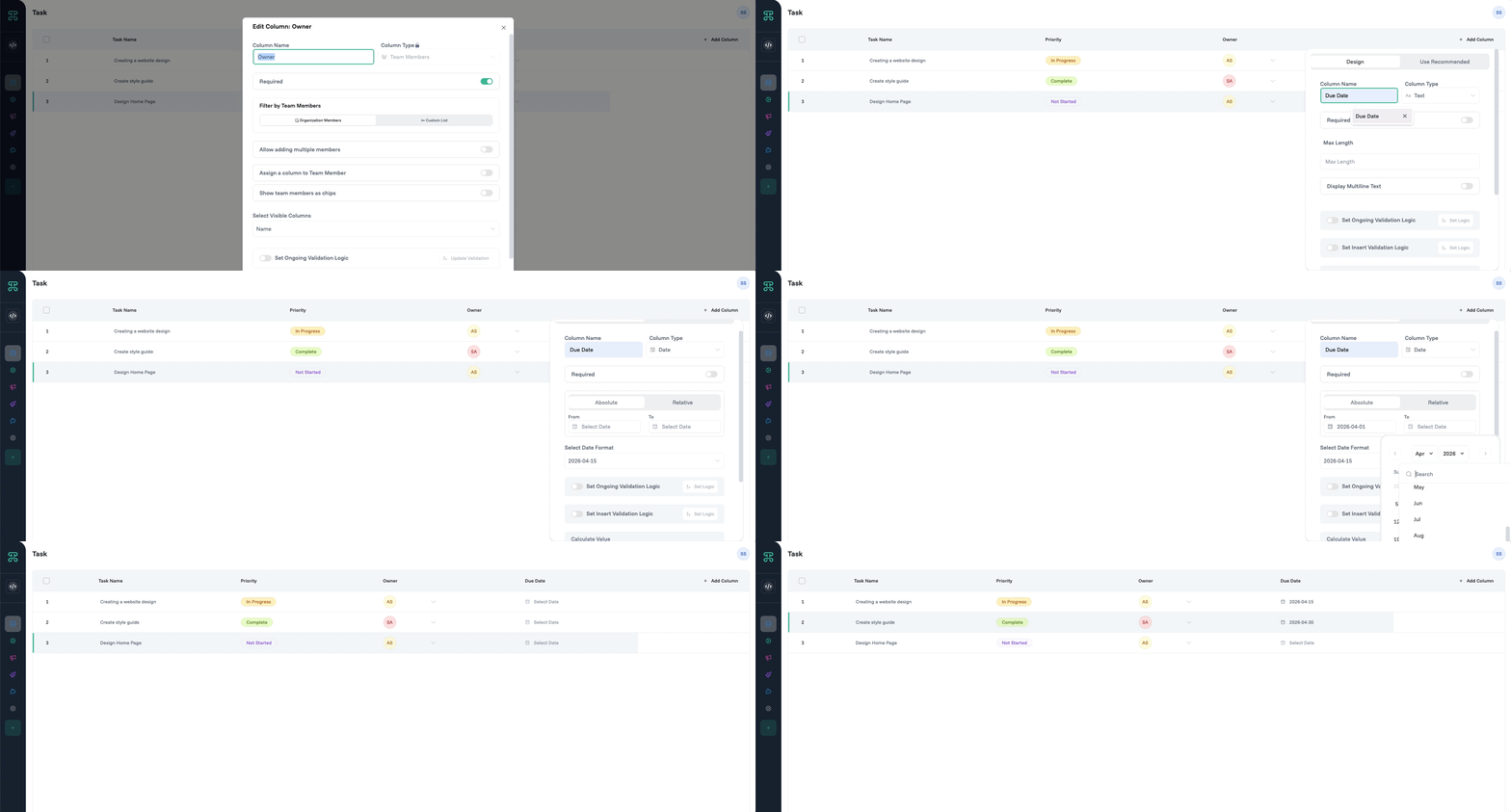
Transform your dataset in under 5 minutes with these three Smart Columns:
Add an Options column named "Status"
Set options:
Not Started(gray),In Progress(yellow),Complete(green)Scan your board in seconds and know exactly where everything stands.
Add a Team Members column named "Owner"
Enable Required to prevent orphaned tasks
See workload distribution at a glance
Add a Date column named "Due Date"
Set deadlines and track what's coming up.
Never miss a deadline again
Result: You've just built a basic task management system that's more powerful than most dedicated tools!
Next Steps
Master Proma's complete feature set by exploring these related capabilities:
Automation Engine - Connect column changes to complex multi-step workflows that orchestrate your entire business process
Logic Composer - Create conditional logic and calculations that power Smart Columns' intelligent behavior
Interfaces - Transform your column data into kanban boards, calendars, galleries, and custom visualizations
Have questions? Our team is ready to help at support@proma.ai