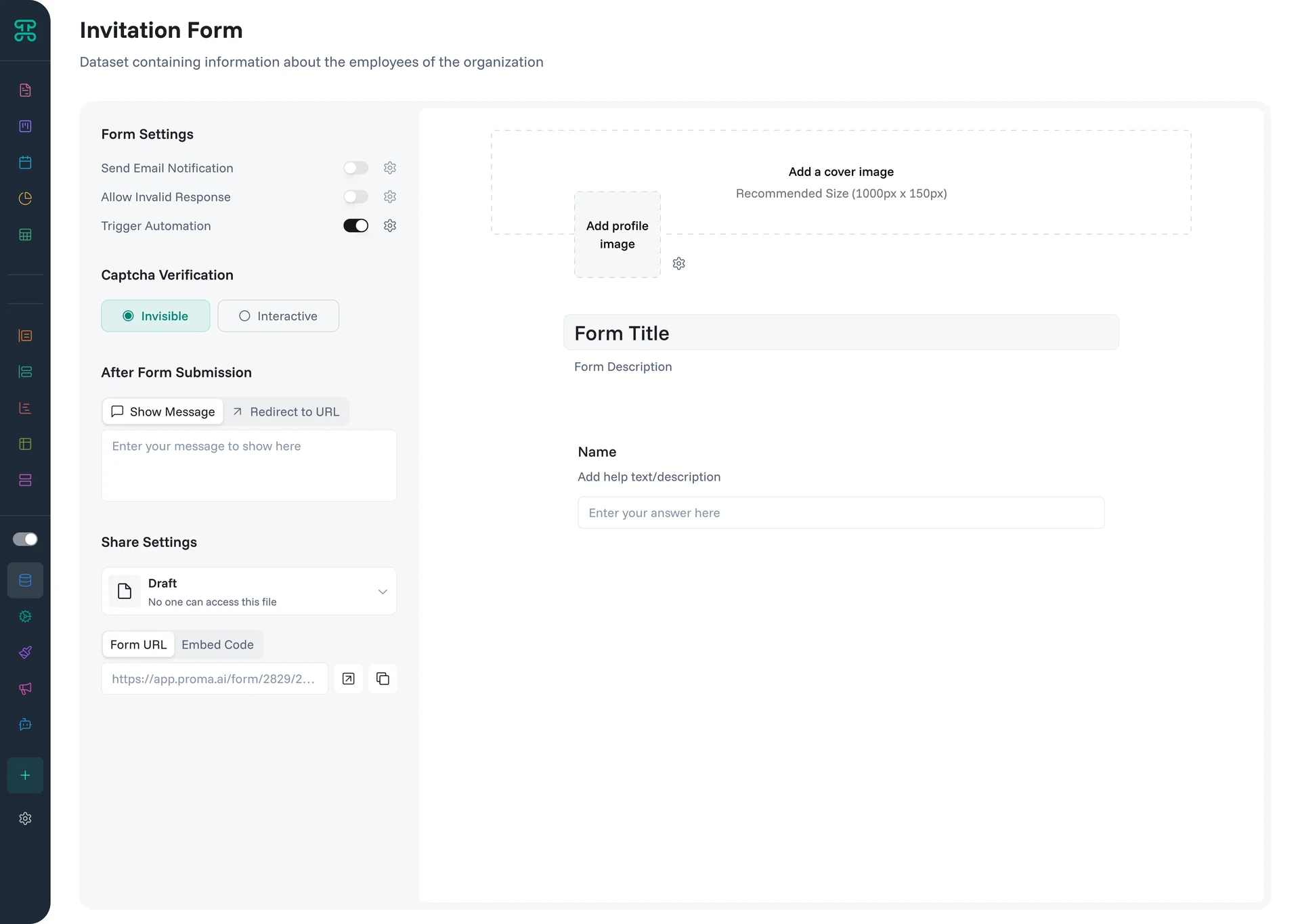
Collect information elegantly without exposing system complexity. Forms provide guided data entry for users who don't need full system access.
Structure & Behavior
Forms present fields in a logical flow with clear labels and help text. Support various input types—text, numbers, dates, dropdowns, file uploads. Include validation to ensure data quality. Show or hide fields based on previous answers. Submit data directly into your datasets.
Public forms work without login, perfect for customer feedback or lead capture. Internal forms can pre-populate based on logged-in user context. Confirmation messages and redirect options provide clear next steps.
When to Use
Lead Generation - Capture prospect information
Customer Feedback - Collect reviews and suggestions
Employee Requests - Process time-off or expense submissions
Event Registration - Manage attendee information
Configuration Options
Design multi-step forms with sections and page breaks for better organization. Build forms through an intuitive drag-and-drop interface—simply drag fields from your dataset into the form builder.
Form Settings control core behavior:
Send Email Notification - Automatically email form responses to designated recipients
Allow Invalid Response - Choose whether to accept partial submissions or enforce all validations
Trigger Automation - Connect form submissions to automated workflows
After Form Submission options guide user experience:
Show Message - Display a custom thank you message
Redirect to URL - Send users to a specific page after submission
Share Settings determine form accessibility:
Draft - Form in development, not accessible to users
Private - Only logged-in users with permissions can access
Public - Anyone with the link can submit responses
Form Distribution provides multiple sharing methods:
Form URL - Direct link to share via email or messaging
Embed Code - HTML snippet to integrate forms into websites
Field Configuration for each form element offers granular control:
Visibility Options - Control when fields appear:
Always - Field is always visible to all users
Private - Only visible to logged-in users with appropriate permissions
Conditional - Show/hide based on logic rules
Disabled - Field appears but users cannot interact with it
Hidden - Field exists in form but is completely invisible (useful for tracking data)
Default Values - Pre-populate fields intelligently:
Use Last Saved Value - Remember user's previous entry for convenience
Set static default values (e.g., "Vacation or Personal time" for a leave type field)
Configure dynamic defaults based on user context or current date
URL Parameters - Accept values from web addresses:
Set from URL - Enable fields to capture data from URL parameters
Query Parameter Key - Define the specific parameter name to watch for
Perfect for pre-filling forms from email links or marketing campaigns