Once your dataset is set up, the next step is deciding how to look at that data. Interfaces are the views you build on top of a dataset: the same records, presented in whatever shape your work actually needs.
What are Interface?
A dataset stores your data. An interface is how you interact with it. You can create as many interfaces as you like on a single dataset. One team member might work from a Kanban board while another uses a Table, and a manager checks a Dashboard. All three are looking at the same underlying records.
Create an interface
To add a new interface, click + Add New at the bottom of the left sidebar.
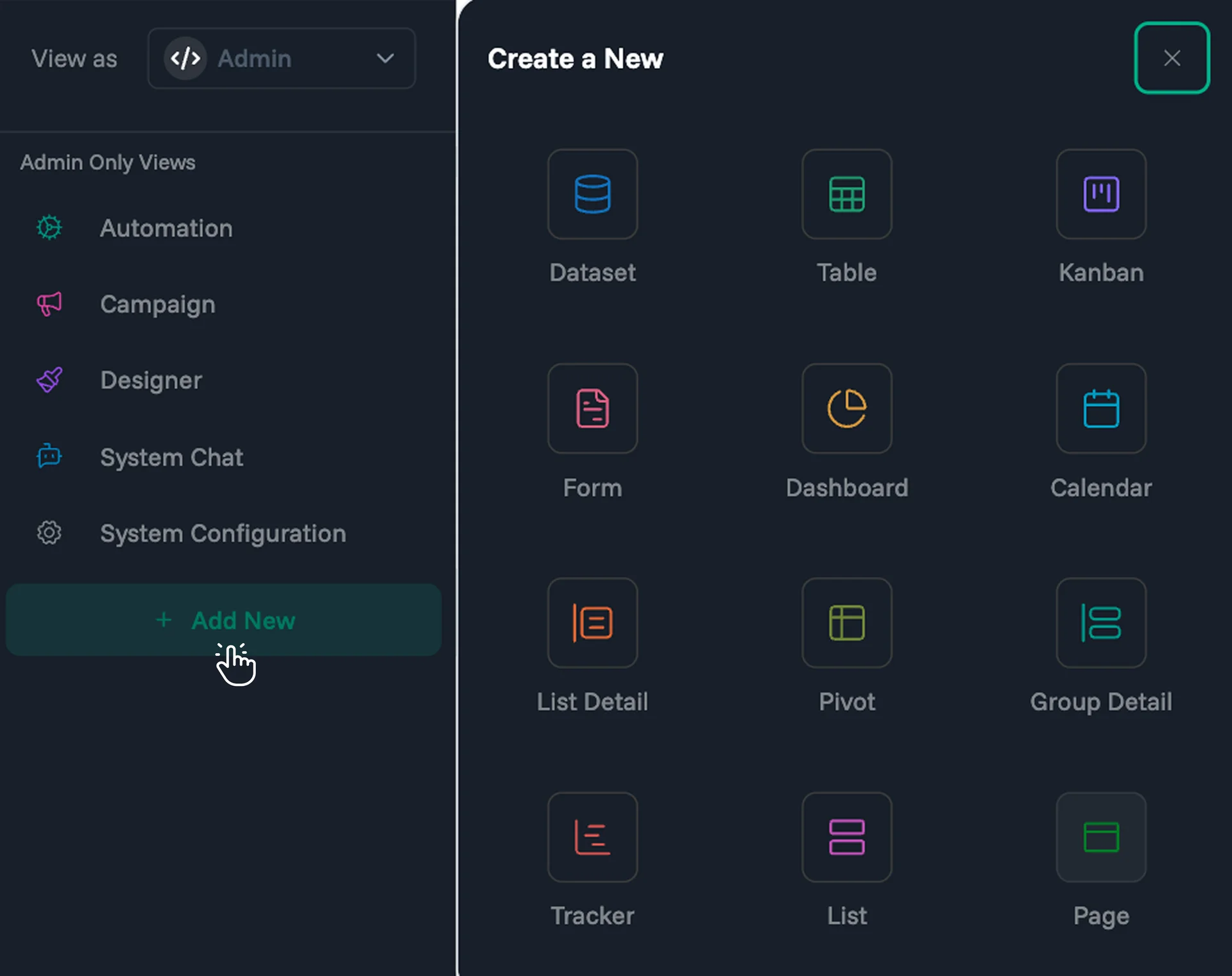
Select the interface type you want: Table, Kanban, Form, and so on.
Enter a name for your interface and choose the dataset it should pull from.
Complete the configuration. Settings differ depending on the interface type.
Click Next to finish and open your new interface.
Interface Types
Proma has eleven interface types. Each one is built for a specific kind of work. Pick based on what your team needs to do with the data, not just what it looks like.
Rows and columns. Best for bulk editing, sorting, and exporting data. | Cards in stages. Best for workflows where records move through statuses. | Records on a timeline. Best for anything with dates: schedules, deadlines, events. |
Charts and metrics. Best for monitoring performance and spotting trends. | Guided data entry. Best for collecting information from people outside your team. | Rich cards with key fields surfaced. Best for browsing records where context on each item matters. |
Scrollable list on the left, full record detail on the right. Best for reviewing and editing records one at a time. | Cross-tab analysis. Best for comparing data across two dimensions at once. | Groups on the left, matching records in a table on the right. Best for navigating large datasets organized by category. |
Timeline view of how records move through stages over time. Best for tracking progress and spotting bottlenecks. | Page Free-form content layout. Best for documentation, reports, and rich text pages. |
Choosing the right interface
Start with one question: what does the role using this interface need to do? The answer points directly to the right type.
If they need to... | Use this | Example |
Move records through stages | Kanban | Support tickets, hiring pipeline, content calendar |
Edit or review many records at once | Table | Inventory updates, bulk data review, exports |
See everything on a timeline | Calendar | Bookings, project milestones, staff schedules |
Monitor metrics and trends | Dashboard | Sales performance, support volumes, KPI tracking |
Collect data from others | Form | Lead capture, feedback surveys, onboarding requests |
Browse and pick records quickly | List | Contact lookup, product selection, approval queue |
View one record in full detail | List Detail | Customer profiles, employee records, case files |
Compare data across two dimensions | Pivot | Sales by region and month, headcount by team and role |
Navigate a large, categorized dataset | Group Detail | Org charts, product categories, location hierarchies |
See who changed what and when | Tracker | Compliance logs, project history, customer touchpoints |
You are not locked in. You can add a second interface to the same dataset any time. A Kanban for your team and a Dashboard for your manager can live side by side: same data, different views.
Next Steps
Explore related Proma features that enhance interface capabilities:
Logic Builder - Create complex conditional workflows with visual programming
Smart Columns - Add intelligent, automated fields to your datasets
Automation Engine - Build automated workflows that respond to interface interactions
Have questions? Our team is ready to help at support@proma.ai