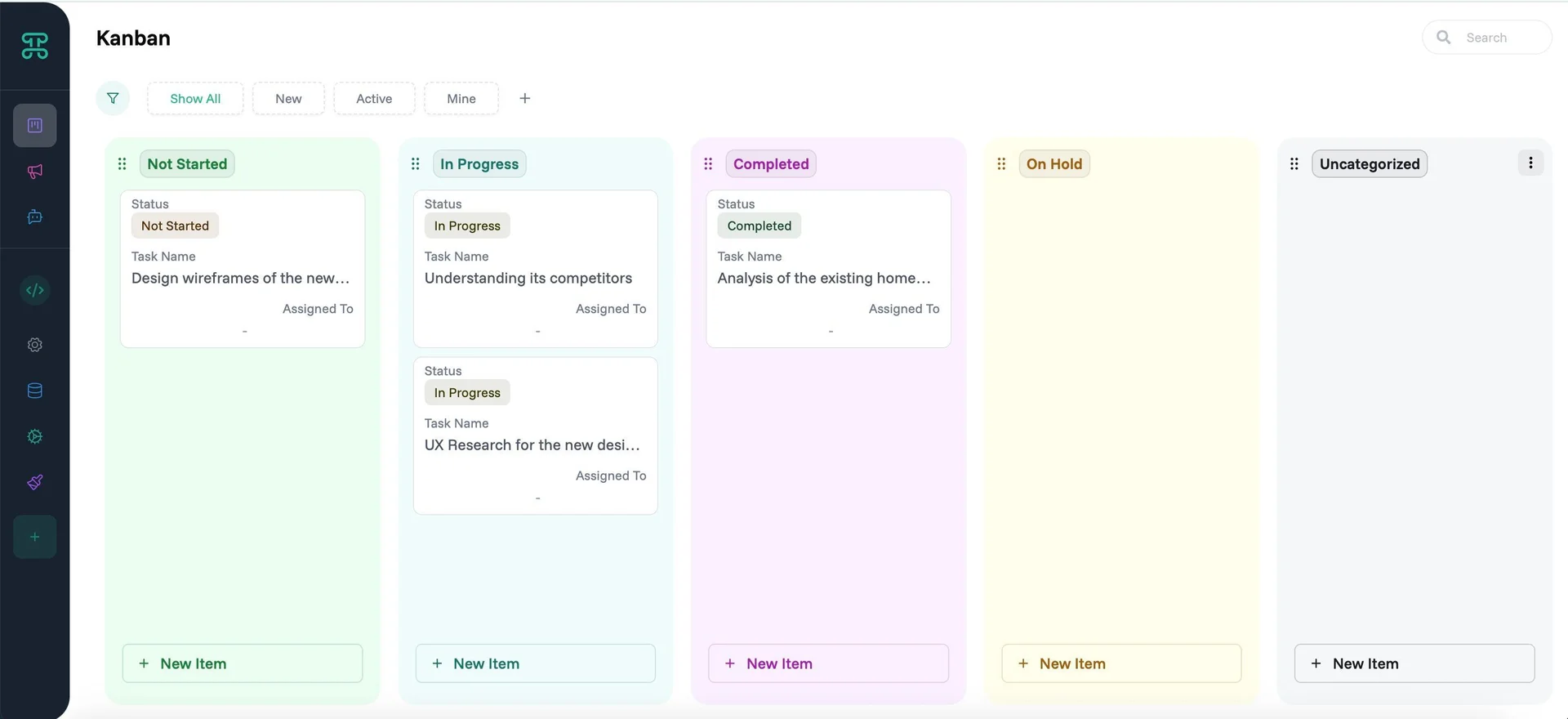
Transform lists into visual workflows. Kanban boards show records as cards organized in columns, typically representing stages in a process.
Structure & Behavior
Each record becomes a card displaying key information. Columns represent states, stages, or categories. Drag cards between columns to update their status instantly.
Cards adapt to your data's story. A sales pipeline might surface customer name prominently with deal size and closing date below. Project workflows could lead with task titles, then show assignee avatars and color-coded priorities. Each card becomes a snapshot of what matters most—you control which fields appear, their order, and visual emphasis to create information hierarchies that match how your team thinks.
When to Use
Project Management - Track tasks through completion stages
Sales Pipelines - Visualize deals moving toward close
Support Tickets - Monitor issue resolution flow
Content Calendar - Manage content through editorial stages
Configuration Options
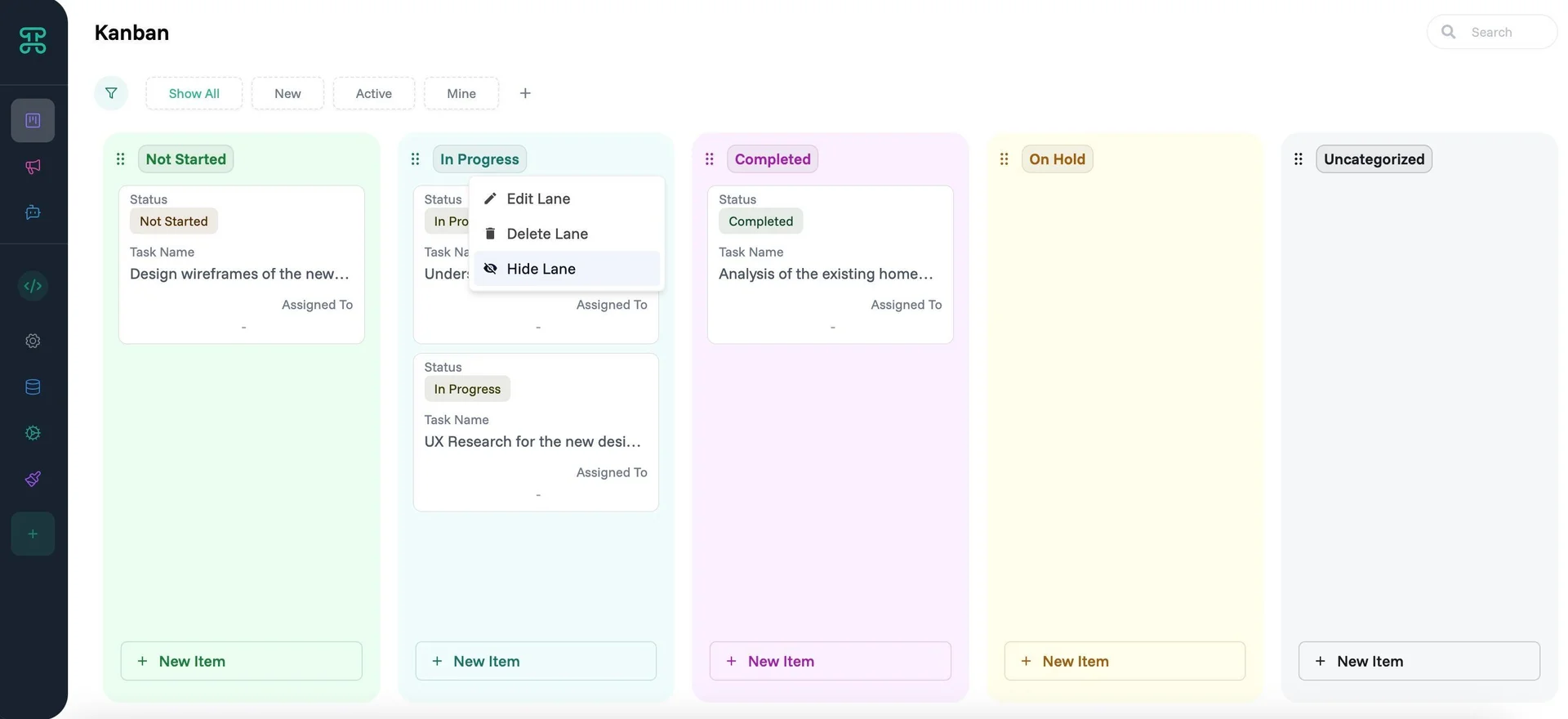
Each Kanban lane can be customized. Click on the three-dot menu (⋮) to access these options:
Edit - Fine-tune how cards behave within this lane:
Sort By: Choose which column sorts cards within the lane (Due Date, Priority, Created Date, or any field from your dataset)
Preview Tab: Customize which fields appear on the card face—keep it minimal for quick scanning
Detail Tab: Configure expanded view fields shown when cards are clicked—include all relevant information here
Apply Preview Settings to All Lanes: Sync your preview configuration across every lane for consistency
Apply Detail View Settings to All Lanes: Ensure detailed views match across the entire board
Delete Lane - Permanently remove this status/stage from your workflow. Cards in deleted lanes need reassignment to remaining lanes.
Hide Lane - Temporarily collapse lanes you're not actively working with. Hidden lanes preserve their cards and settings, reducing visual clutter without losing data.
Create Your First Interface
Time to first interface: 3 minutes
This example creates a Kanban board for project management.
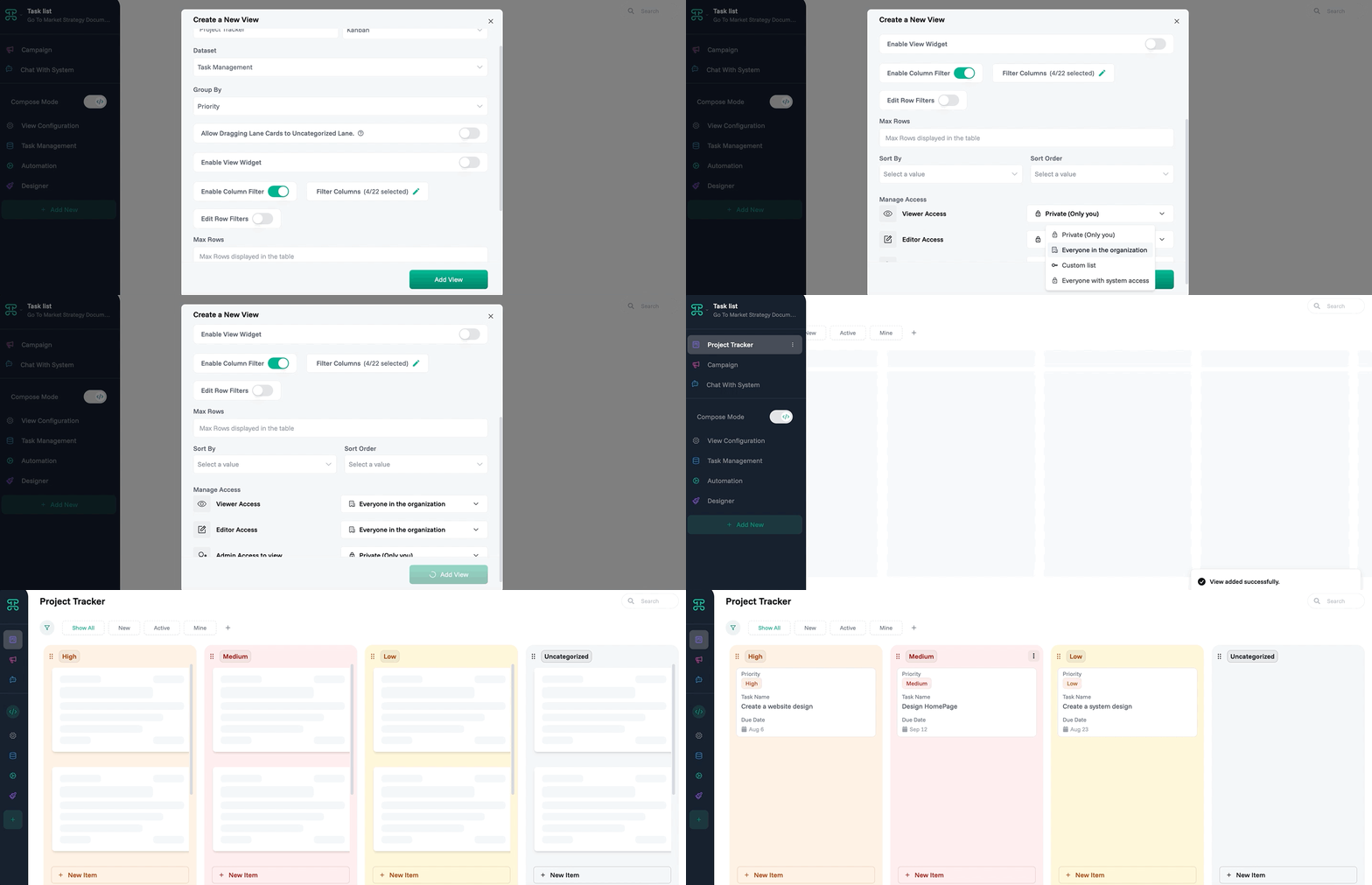
Step 1: Access Interface Creation
Open your tasks dataset
Click the "+" button
Select "Kanban Board"
Name it "Project Tracker"
Step 2: Configure Columns
Columns appear: To Do, In Progress, Review, Done
Drag to reorder columns if needed
Step 3: Design Cards
Click "Configure Cards"
Add fields: Task Name, Assignee, Due Date, Priority, Status
Enable color coding by Priority
Step 4: Set Permissions
Team: Can edit (drag cards)
Stakeholders: View only
Save configuration
✓ Done! Your team can now visualize project flow.